
Aura Pin Studio
Smart Pinterest Workspace for Creators
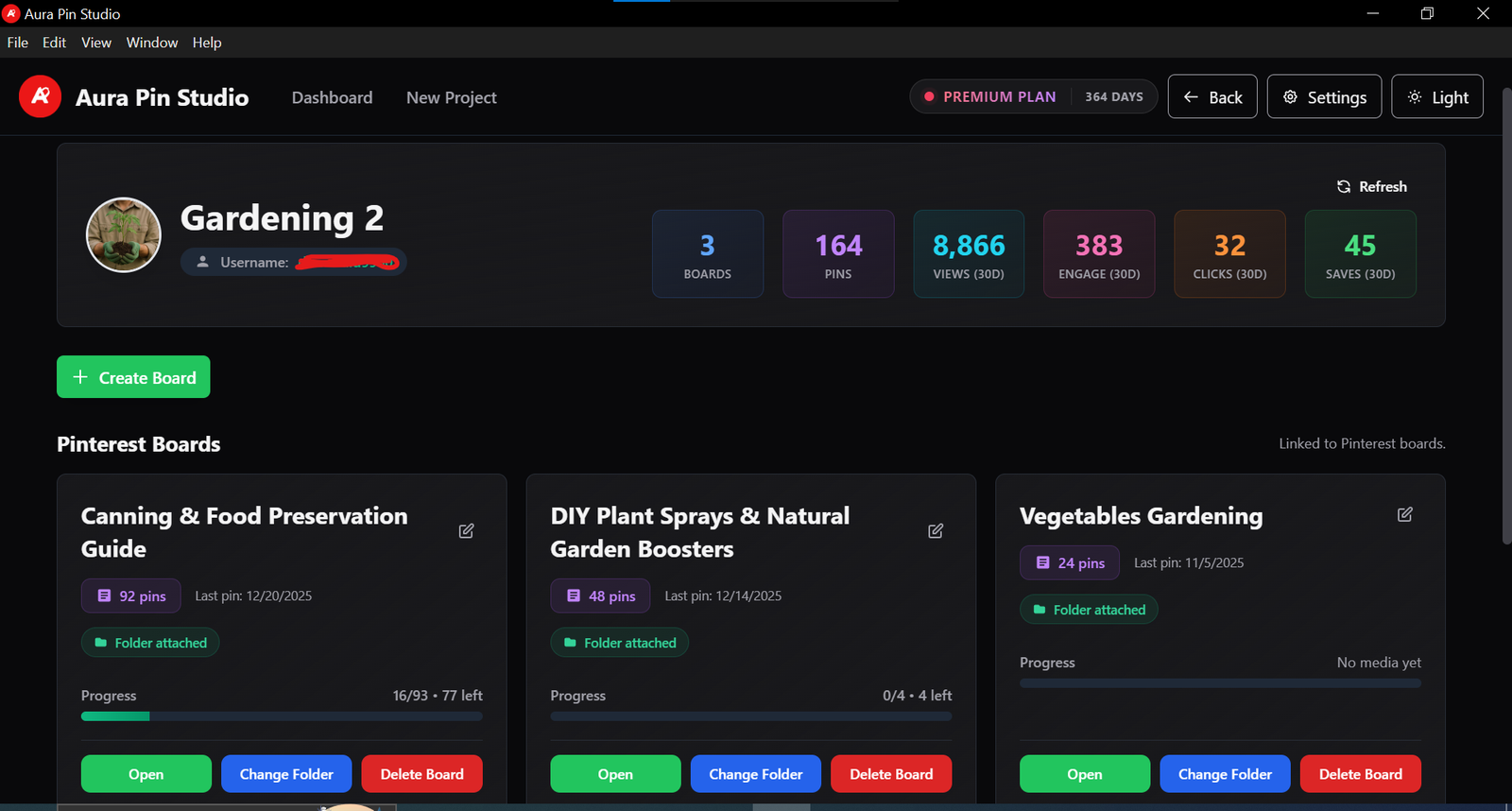
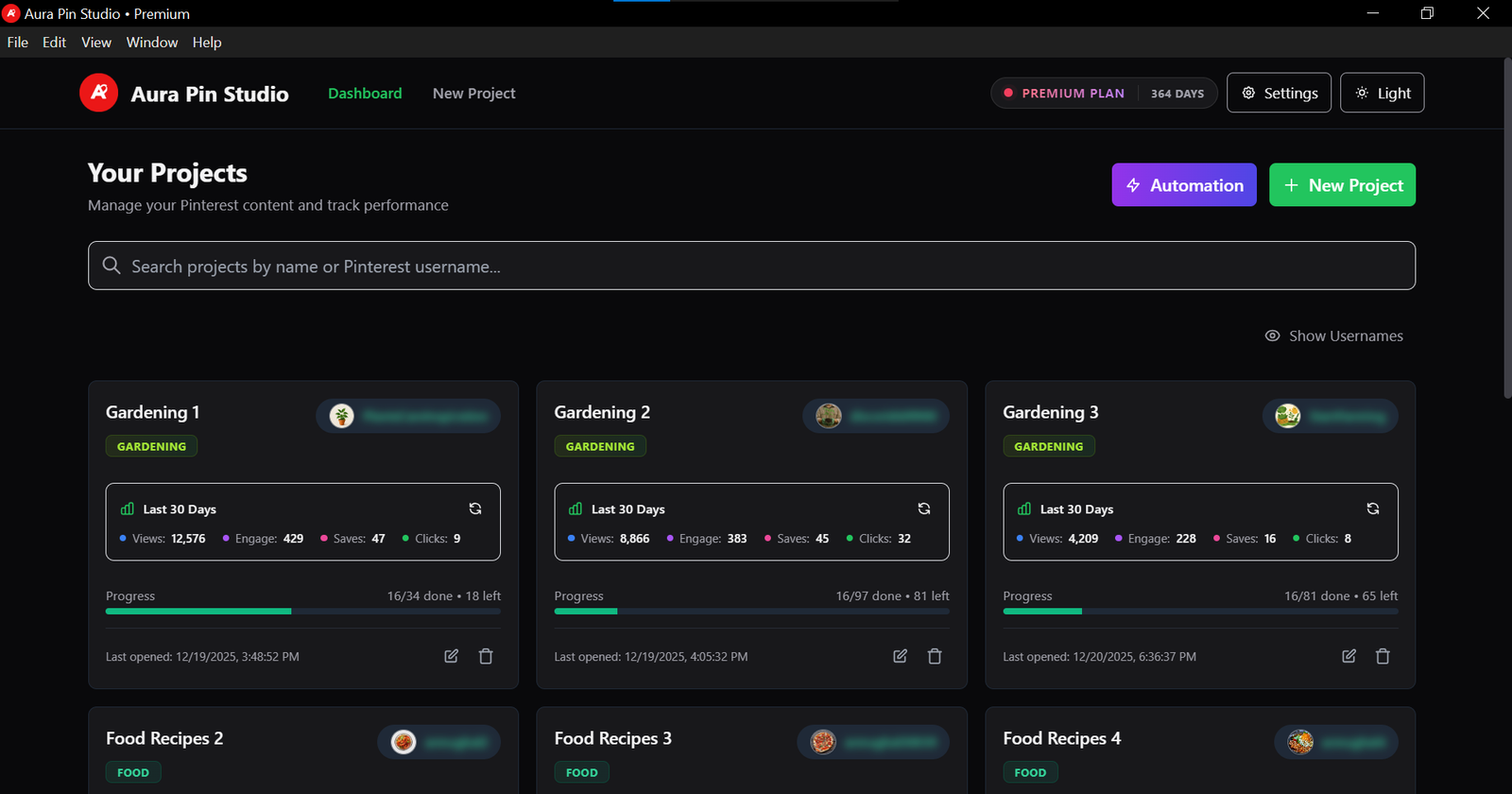
Dashboard Overview
Manage All Pinterest Projects in One Place
Aura Pin Studio gives you a clean, powerful dashboard to track progress, manage boards, organize projects, and upload pins effortlessly.
By downloading Aura Pin Studio you agree to our
Privacy Policy.
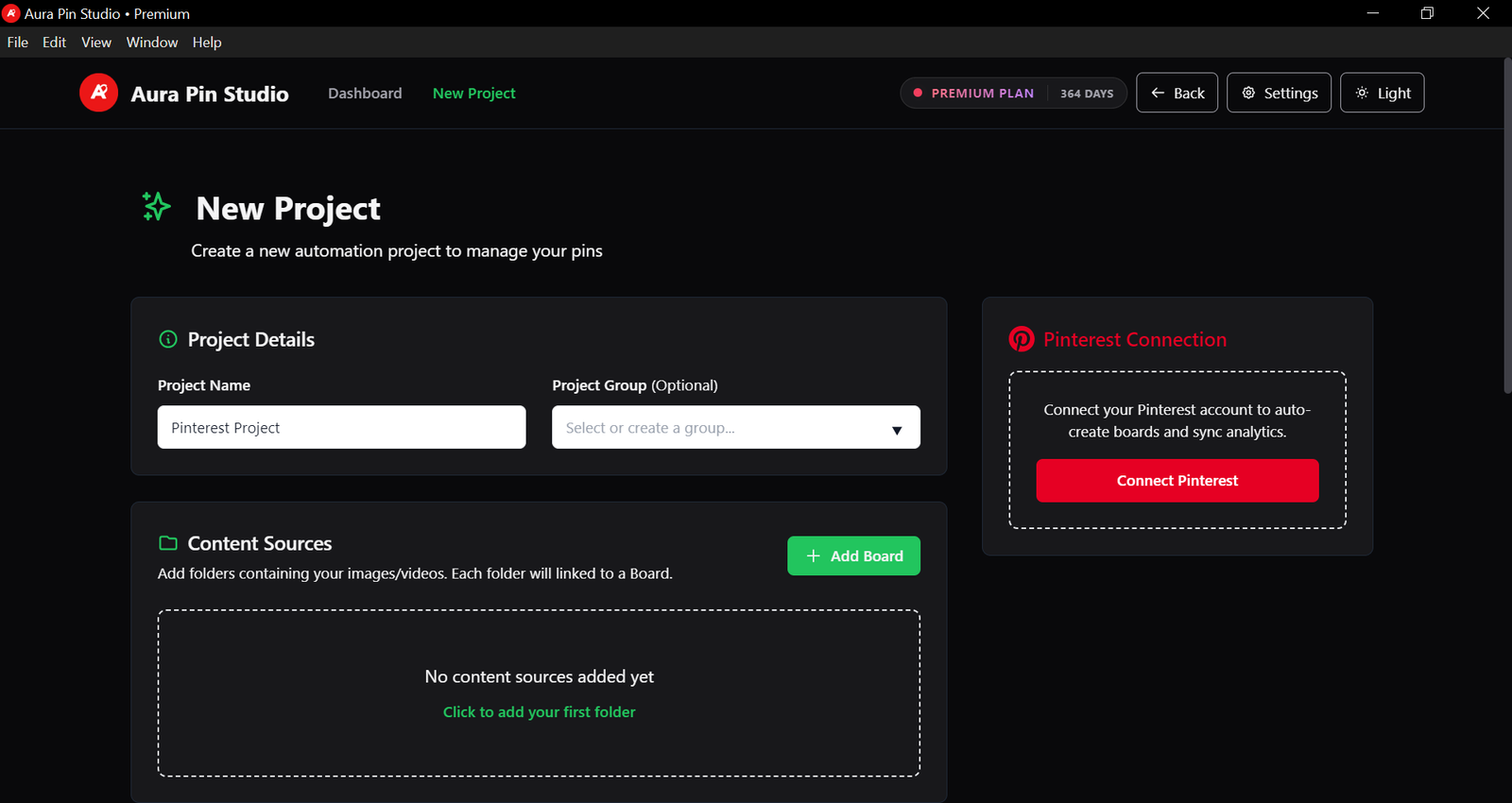
New Project Screen
Create a new Aura Pin Studio project
Start by creating a project, linking a Pinterest account, and defining how Aura Pin Studio should generate titles and descriptions for your pins. Each project can manage its own boards and media folders.
- Create a dedicated project for each brand or Pinterest niche.
- Attach an Images folder and a Completed folder.
- Link a Pinterest account for this project only.
- Set your own AI prompt for description generation.
- Control title mode, title length and language per project.
- Create boards and assign a media folder to each board in the next step.
This keeps every client or niche fully separated – with its own
Pinterest account, folders, boards and AI settings.
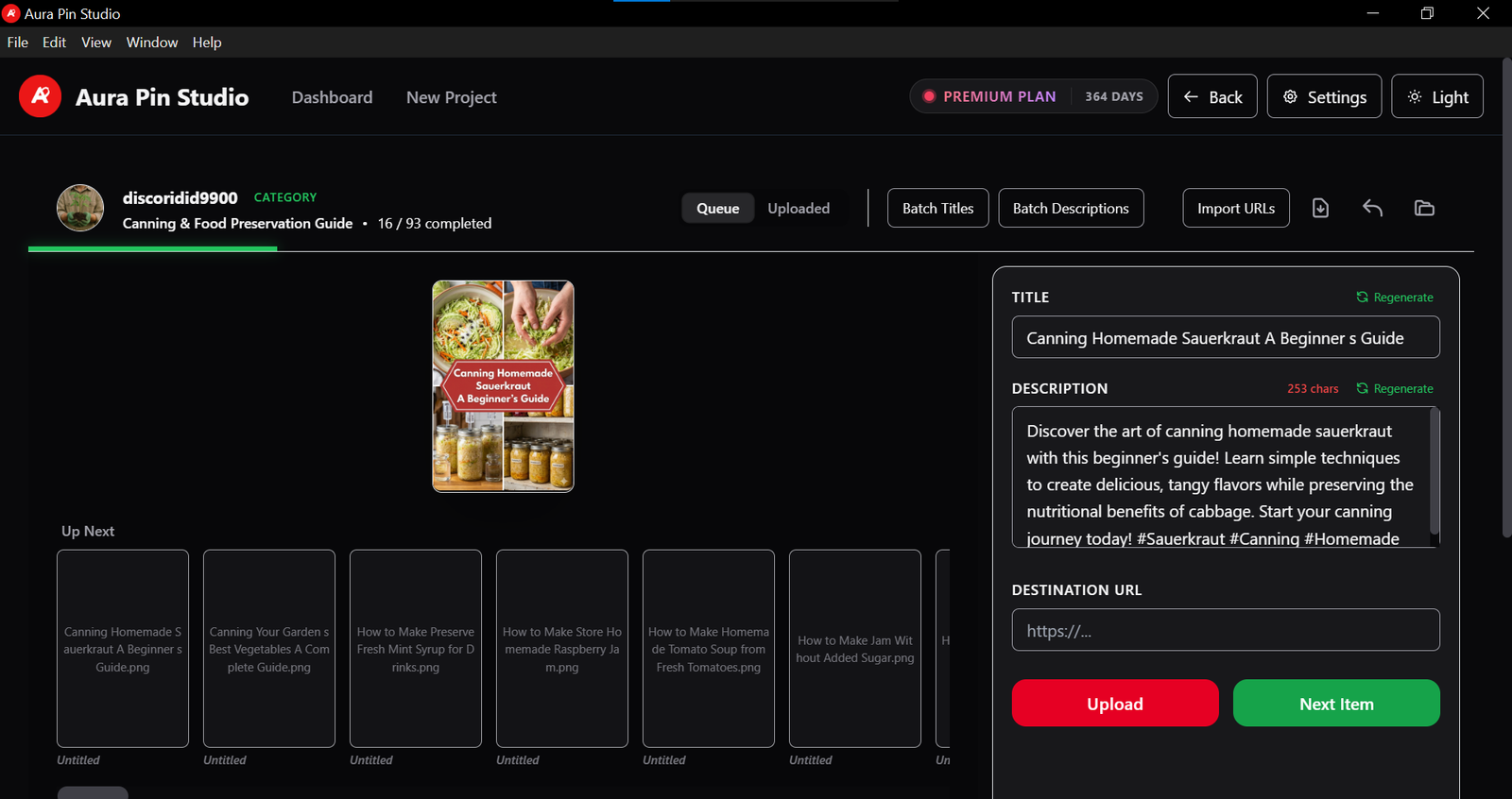
Project Home
Organize every Pinterest board inside one project
The Project Home screen shows all boards for the current project. From here you can create new Pinterest boards, attach or change media folders, delete a board, and track progress for each board individually.
- See all boards for the selected project.
- Create a new board with a category name & SEO description.
- Attach a media folder to each board for its pin images.
- Open the Workspace for any board in one click.
- Change the attached folder or delete a specific board anytime.
- Monitor per-board progress with a clean progress bar.
Project Home keeps your boards, folders and upload progress perfectly
separated for each Pinterest project.